In short
Zebra AI brings AI-powered data analysis directly into Microsoft Fabric. Add it from the Workloads sidebar — this needs one-time consent from your Azure admin — then create a Zebra AI item from New item in a Fabric capacity workspace and connect your data to generate your first story.
01 — Overview
What is the Zebra AI workload for Fabric?
Zebra AI, from Zebra BI, connects to your data and generates decision-ready reports that explain what changed and why. It runs directly inside Microsoft Fabric as a native workload. You install it once, then create Zebra AI items in a Fabric capacity workspace to build decision-ready data stories where your governed data and semantic models already live.
02 — Requirements
What do I need before I start?
- A Fabric workspace on an active Fabric capacity — you choose the workspace or capacity when you add the workload.
- Azure admin consent. Adding Zebra AI to your tenant needs consent from your Azure administrator. If you are not an admin, ask them to grant it — the workload cannot be used until they do.
03 — Install
How do I install the Zebra AI workload?
To install the Zebra AI workload on your Fabric tenant, follow these steps:
- Inside Fabric, click Workloads from the navigation sidebar.
- Under Add more workloads, find Zebra AI and select it.
- Click Add Workload, select the Fabric workspace or capacity you want to add it to, and confirm.
You will need to ask your Azure admin to provide consent to add Zebra AI to your Azure tenant before using it.
Prefer not to install anything?
Zebra AI also runs in the browser via Google or Microsoft SSO. You can log in and start there without adding a workload.
04 — Use it
How do I create and open a Zebra AI item?
Navigate to a Fabric capacity workspace and select New item at the top. Search for Zebra AI.
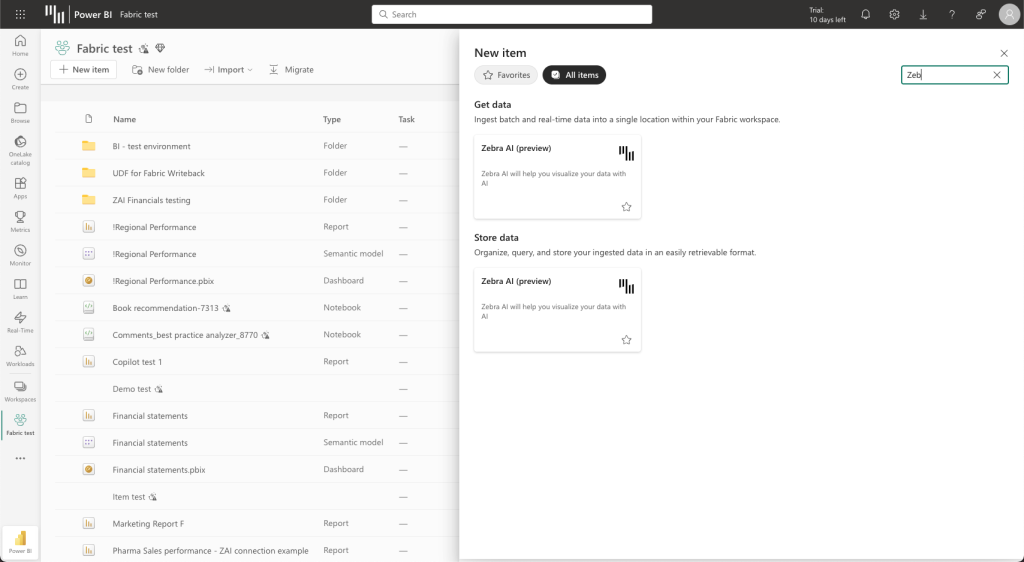
After selecting Zebra AI, you will be asked to name the newly created item. Input a name and confirm.
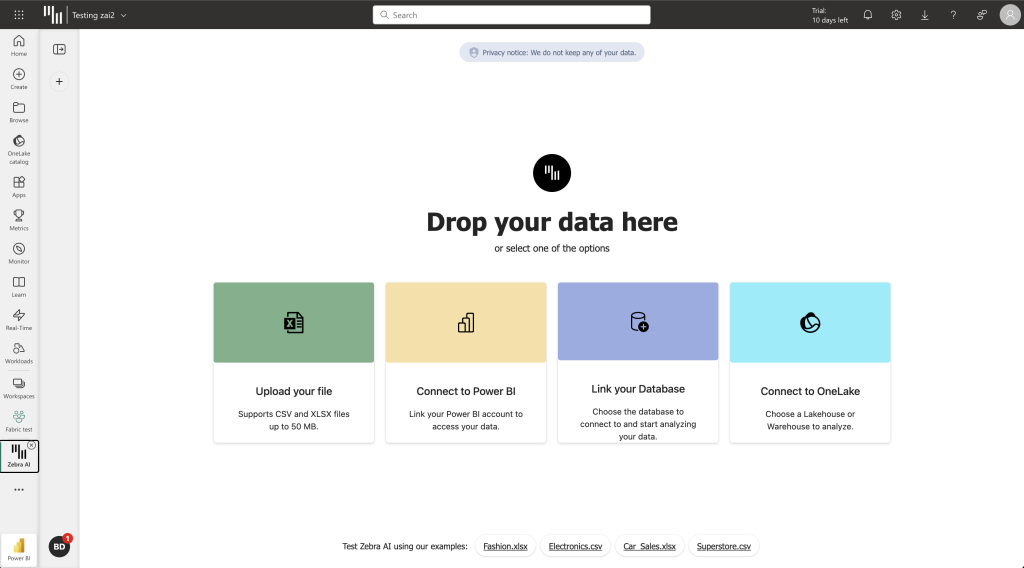
That’s it — the workload interface appears and is ready for your analysis.
What’s next
Continue with Getting started with Zebra AI to connect a dataset and generate your first dashboard.
05 — Connect
What data can I connect?
Once your item is open, start from the sources your team already uses:
| Source | Notes |
|---|---|
| OneLake | Work directly against data in your Fabric lake. |
| SQL databases | MS SQL, MySQL, PostgreSQL, Snowflake, and Databricks. |
| Power BI semantic models | Reuse governed models; Power BI Row-Level Security is respected. |
| Excel / CSV | Start from a spreadsheet. |
Zebra AI then builds an IBCS-style data story you can refine in chat and export to Excel or PowerPoint.
06 — Fabric vs. browser
Is the Fabric workload different from the browser version?
The two versions are functionally near-identical. Because the Fabric workload runs inside Microsoft Fabric, the main difference is that access and sharing are governed by Fabric’s platform roles and permissions, rather than managed within Zebra AI itself. Connecting data, generating stories, chatting with your data, and exporting to Excel or PowerPoint all work the same way in both.
07 — FAQ
Do I need admin rights to install it?
You can start the install, but your IT admin might need to grant tenant consent before the workload can be used. Share the install steps with them if needed.
Which capacity or workspace should I add it to?
Add it to the Fabric workspace or capacity where the data you want to analyze already lives, so you can connect your sources without extra setup.
Does Zebra AI respect Power BI Row-Level Security?
Yes. When you connect a Power BI semantic model, users see exactly what their Power BI role-level security permits. Please note that as a workload within Microsoft Fabric, Zerba AI’s workload in Fabric adheres to viewing rights, roles & permissions as set in the settings of the Fabric platform.
Can I connect Snowflake or Databricks?
Yes. Zebra AI connects to Snowflake and Databricks, alongside MS SQL, MySQL, and PostgreSQL.
Is the Fabric workload different from the browser version?
The two are functionally near-identical. The main difference is that, because the Fabric workload runs inside Microsoft Fabric, access and sharing are governed by Fabric’s platform roles and permissions rather than managed within Zebra AI.
Can I use Zebra AI without Fabric?
Yes. Zebra AI also runs in the browser via Google or Microsoft SSO, and an Azure Managed App is available on request for teams that need deployment inside their own Azure environment.
Set up Zebra AI in your Fabric tenant
Connect your governed data and generate a decision-ready story in minutes.