Zebra AI's analysis and IBCS visuals are only as good as the data you feed them — the garbage in, garbage out rule apply. The Data Cleaning Assistant runs automatically on uploaded Excel and CSV files to fix common formatting issues. It won't run on Power BI models or connectors, and it can't invent missing data: for variance analysis, bring numeric columns and a comparison base.
01 — The importance of data quality
Your input decides your output
Zebra AI does two things exceptionally well: deep, traceable data analysis, and advanced variance visuals built on IBCS — the reporting standard now formalized as ISO 24896:2026. Both depend entirely on the data you bring.
A clean, well-structured table with the right measures produces a boardroom-ready variance story. A single column of actuals with no point of comparison produces a chart, but not the "why" that makes Zebra AI so powerful. For uploaded Excel and CSV files, automatic cleaning removes the formatting friction raw spreadsheets carry — but it can't make up for data that isn't there.
Why it matters
Cleaning fixes how your data is formatted. It can't change what your data contains. The quality of your input sets the ceiling on every chart and insight Zebra AI produces, so the highest-leverage thing you can do is bring the right data in the first place.
02 — What your data needs
What your data needs for Zebra AI to do its best work
Two things matter before anything else.
1. At least one numeric column. Zebra AI visualizes and analyzes measures — revenue, cost, units, headcount. A table of labels and text with nothing to quantify has nothing to chart. Cleaning helps make sure your numbers are stored as numbers (see below), but the values themselves have to be there.
2. A comparison base, for variance analysis. Zebra AI's signature output is variance: actuals measured against a reference. That reference has to exist in your data — one period of actuals on its own has nothing to vary against.
| To compare actuals against… | Include a column with… | IBCS term |
|---|---|---|
| Last year | The same measure for the prior year | PY (previous year) |
| The prior period | The same measure for the prior month or quarter | Prior period |
| Your budget or plan | Planned / target values | PL (plan) |
| Your forecast | Forecast values | FC (forecast) |
The rule
Bring actuals plus at least one comparison column and Zebra AI builds variance charts against it. Bring several and it can show a full actuals-vs-plan-vs-forecast-vs-prior-year picture. For the complete structural checklist — layout, granularity, date handling — see how to prepare your Excel and CSV data.
03 — Automatic data cleaning
What the Data Cleaning Assistant fixes for you
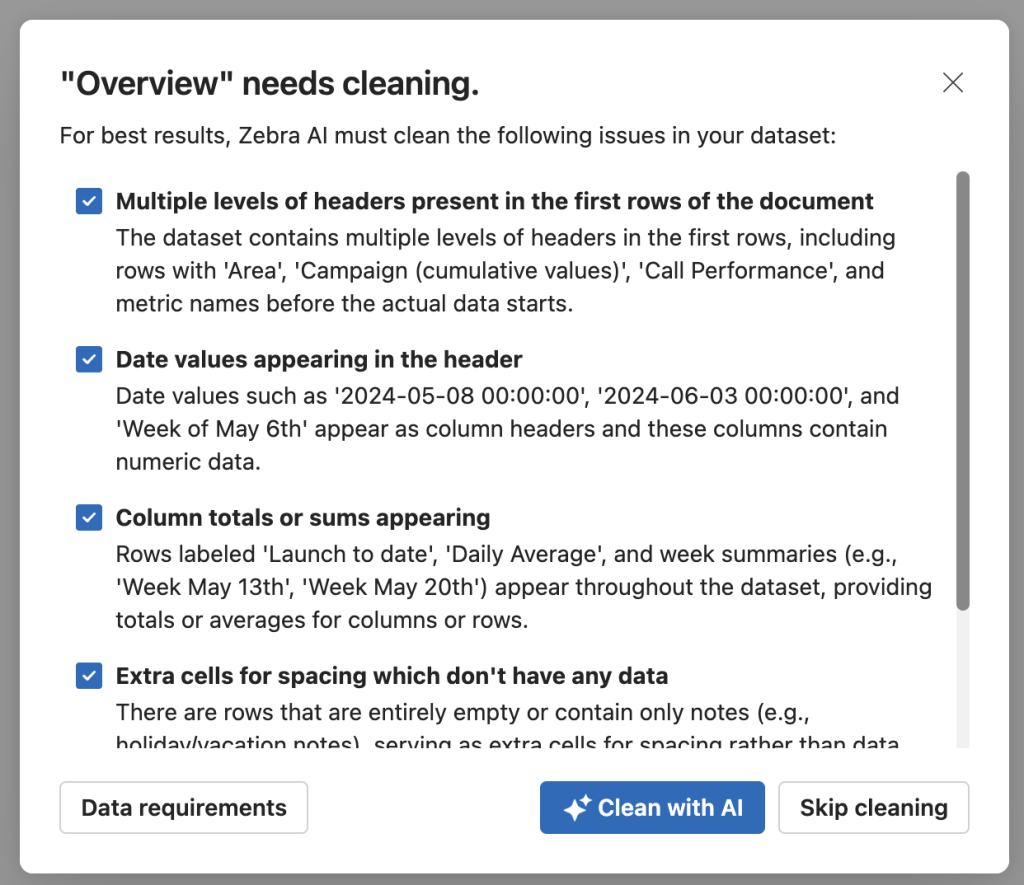
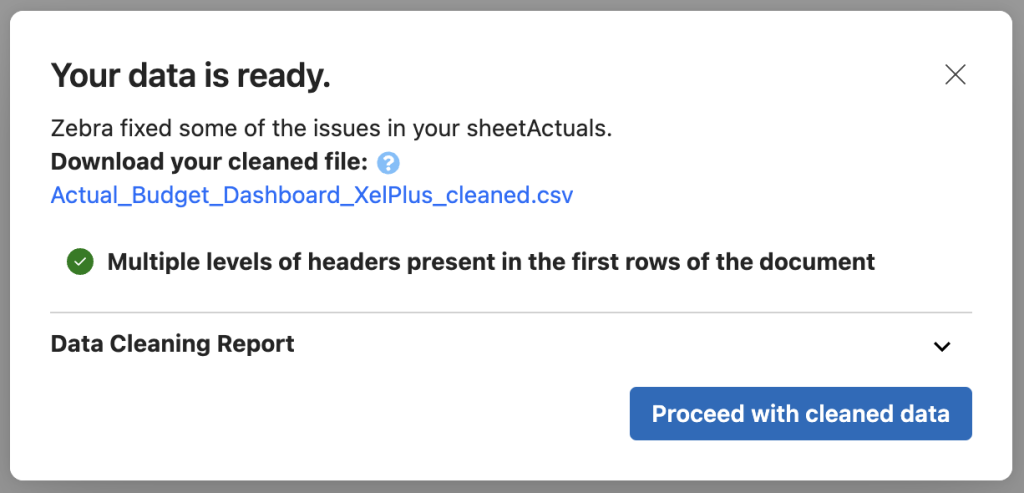
On upload, a Data Quality Check runs automatically and fixes common formatting issues iteratively and conservatively — if a step doesn't improve the data, it reverts and tries another approach. It won't touch a file that's already clean. This gets your structure right so your measures and comparisons are usable; it isn't a substitute for bringing them.
| Problem it detects | What Zebra AI does |
|---|---|
| Multiple / stacked header rows | Merges them into one clear header row |
| Dates used as column headers (wide format, e.g. 01-2025, Q1-2024) | Unpivots wide → long so each period becomes a row |
| Totals or sums embedded as rows or columns | Removes them so they don't distort the analysis |
| Empty spacer cells, rows, or columns | Drops the cosmetic separators |
| Non-repeating values that should carry down (hierarchical tables) | Forward-fills them into the following rows |
| Non-standard missing values (NA, null, none) in numeric columns | Normalizes them to true empty values |
| Symbols or mixed separators in numeric columns (€, %, 1.000,00) | Strips symbols and standardizes thousand / decimal separators, so numbers parse as numbers |
04 — What cleaning can't do
What cleaning can't do for you
Cleaning fixes structure. It can't supply meaning or missing data:
- It can't add a comparison column. No prior-year, budget, or forecast in your file means no variance — the assistant won't fabricate one.
- It can't invent measures. If there's no numeric value to analyze, there's nothing to visualize.
- It can't make business-logic calls — deduplication rules, merging entities, or interpreting domain-specific hierarchies.
- It can't resolve ambiguous entries — misspellings, mislabeled categories, or inconsistent codes.
- It can't do schema redesigns, unit or currency conversions, or fix source-system issues — those belong upstream.
When a problem needs judgment, prepare the file manually using the data preparation guide.
05 — When cleaning runs
When does automatic cleaning run — and when doesn't it?
Automatic cleaning is an Excel and CSV upload feature, full stop. It runs only when you upload a file, because that's the only case where data arrives unmodelled and may carry raw-spreadsheet mess. Connect a Power BI semantic model or a database connector and the Data Cleaning Assistant never runs — that data is already structured and governed, so there's nothing to clean and Zebra AI won't alter your source.
| How your data comes in | Does automatic cleaning run? |
|---|---|
| Uploaded Excel or CSV file | Yes — runs automatically on upload |
| Power BI semantic model (XMLA / DAX) | No — never runs; data is already modelled |
| SQL database connection | No — never runs; fix data upstream |
| Snowflake / Databricks connector | No — never runs; fix data upstream |
If a connected source has data issues, fix them at the source — or export a file, clean it here, and bring it back in.
06 — How to run it
How do I run automatic data cleaning?
- Upload your Excel or CSV file. Add a CSV or XLSX file to start.
- Let the Data Quality Check run. It scans for the issues above automatically.
- Review and select the issues to resolve. The assistant plans, executes, and evaluates each change.
- Inspect the cleaned preview. Confirm your measures and comparison columns came through as numbers.
- Download the cleaned dataset and resume. Keep the cleaned copy so you can re-upload it later and continue the same story without re-cleaning — and so teammates work from the same version.
These steps apply to file uploads. Connecting a semantic model or connector skips cleaning entirely.
07 — Tips for best results
How do I get the best results from automatic cleaning?
- Upload the rawest practical file. The assistant is built for messy spreadsheets, so there's no need to tidy it up first.
- Let it run end to end. It often resolves several issues in a single pass.
- If something looks off, download the result, make minor manual adjustments, then re-upload and continue.
- If it can't clean the file automatically, prepare it by hand with the data preparation guide.
08 — FAQ
Why isn't Zebra AI showing variance in my charts?
Variance needs a reference. If your file has only actuals with no prior-year, prior-period, budget, or forecast column, there's nothing to vary against. Add a comparison column and re-upload.
Can automatic cleaning add a missing prior-year or budget column?
No. Cleaning fixes formatting and structure; it can't invent data that isn't in your file. Comparison columns have to be present in the source.
Does automatic cleaning change my original file?
No. Fixes are applied to a working copy, any step that doesn't improve the data is automatically reverted, and you download a separate cleaned copy.
What happens if my file is already clean?
Nothing — the assistant detects there's nothing to fix and skips cleaning entirely.
Does cleaning run on a Power BI semantic model or a connector?
No. It runs only on uploaded Excel and CSV files, never on a Power BI, SQL, Snowflake, or Databricks connection — that data is already modelled. Fix issues upstream, or export a file, clean it, and re-import.
What if it can't clean my file automatically?
Prepare it by hand with the data preparation guide, then re-upload.
09 — Next steps
Turn a clean spreadsheet into a variance story
Upload an Excel or CSV file with actuals and a comparison base, and let Zebra AI build the dashboard.
Start for freeLast reviewed: 28 July 2026