Good data preparation is the difference between an analysis you can trust and one you have to second-guess. This guide covers the file formats Zebra AI supports, the size limits, and the exact table structure that produces accurate, IBCS-standard analytics with the least manual effort. For live databases or Power BI, see the connector guides linked below.
01 — Formats & limits
Which file formats does Zebra AI support?
Zebra AI analyzes data from Excel and CSV files, and it also connects directly to databases and BI tools such as Microsoft SQL Server, PostgreSQL, MySQL, Snowflake, Databricks, and Power BI. This page covers Excel and CSV uploads. To analyze a live source instead, see Connecting to SQL databases or Connect to Power BI: XMLA and DAX.
| File format | Best for | What to watch |
|---|---|---|
| Excel (.xls, .xlsx) | The preferred format. It retains data types and structure, so analysis is more accurate with less setup. | Keep the whole dataset on one worksheet. |
| CSV (.csv) | Fully supported and quick to export from most systems. | CSV stores no data types, so formatting has to be stricter — dates and numbers especially. |
What are the size limits?
- Up to 25 columns is recommended for optimal performance.
- Up to 1 million rows.
- A 50 MB file size limit.
If your file is larger or wider than this, trim to the columns you actually want to analyze, or connect to the source directly rather than exporting a flat file.
02 — Data structure
What data structure works best?
The ideal shape is a single flat table where the first row holds descriptive column names and every row below is one raw record. Before you upload, check four things:
- One sheet. Keep the entire dataset on a single worksheet — ideally the first one. Zebra AI does not consolidate data across multiple sheets.
- Start at A1. Put the table in the top-left cell. Zebra AI tries to detect where your table sits, but starting at A1 is the safe path — no text or labels above it.
- No stray content. Remove titles, subtitles, footnotes, and summary rows that sit outside the table.
- Clear headers. Make column names meaningful and reasonably short.
Why it matters
Zebra AI reads the table’s shape to decide what is a dimension, a measure, a date, and a scenario. Merged cells, gaps, and pre-aggregated totals hide that structure — which is what forces manual fixes later. A clean flat table lets the analysis and every figure trace straight back to your data.
03 — Structuring the table
These are the rules that most affect the quality of your analysis.
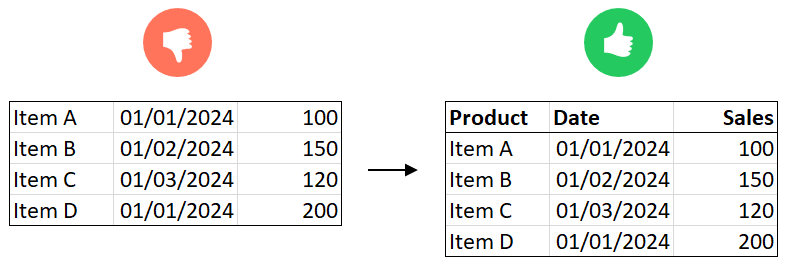
Column headers
- The first row must contain the column headers.
- Keep names concise and descriptive — “Sales revenue” reads better than “Rev_Sales_2023”.
- Avoid merged cells and multi-level headers.
Rows and records
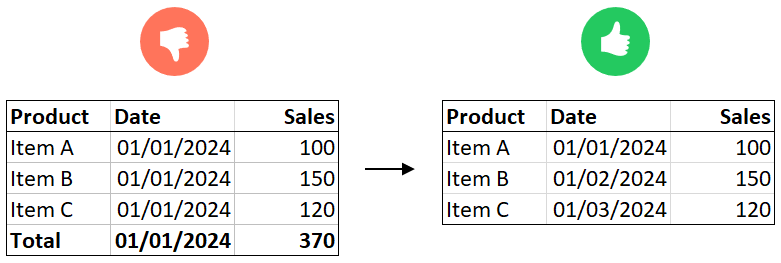
- Each row is one unique record — no subtotal or grand-total rows.
- Repeat categories on every row (e.g. “Product category” appears in each row, not as a grouped section header).
- Keep figures granular and raw, not aggregated.
- Remove empty rows and columns inside the table.
Dates and time
- Put dates in a single column, formatted as real date values.
- Don’t store dates horizontally (Jan, Feb, Mar as separate columns) — keep them in one column (see the example below).
- No need to add year, month, or quarter columns — Zebra AI derives them for you and builds both month-over-month and year-over-year comparisons.
- Include enough history for the comparison you want — consecutive months for month-over-month, two or more years for year-over-year.
Working on a fiscal year?
Zebra AI recognizes fiscal years. Provide standard calendar dates in your file, and you can add the fiscal year to your data on the data preview screen — so periods and period-over-period comparisons line up with your financial calendar, not just the calendar year.
Numbers, measures, and KPIs
- Format numeric data as numbers, not text.
- Use empty cells for missing values — not “N/A” or “-” inside a number column.
- Don’t pre-aggregate. Zebra AI aggregates automatically, so leave raw values in place.
- Keep measures (KPIs) separate from categorical values.
- For percentages, provide the raw numerator and denominator rather than a pre-calculated percentage.
Categories and dimensions
- Keep categorical values consistent (use “M” / “F”, not a mix of “M” and “1”).
- Include multiple dimensions — regions, product categories, customer types — so Zebra AI can analyze deeply and find drivers.
- The more clean dimensions you provide, the more patterns Zebra AI can surface.
Scenarios: actual, plan, previous year
- Store scenario labels (“Actual”, “Plan”, “Previous year”) in a single column with clear, consistent values.
- Zebra AI recognizes and pivots these into variance analysis — the actual-vs-plan and year-over-year views at the heart of IBCS reporting.
Duplicate rows
- When dimension values match but measures differ, Zebra AI aggregates the rows automatically.
- That protects data integrity — but double-check that any duplicates are intentional.
04 — Worked example
Reshape wide data into long format
The most common fix is turning a wide, month-across-columns layout into a long one with a single date column. Same numbers — a structure Zebra AI can analyze.
| Product | Jan | Feb | Mar |
|---|---|---|---|
| Item A | 100 | 150 | 120 |
| Item B | 200 | 180 | 210 |
| Product | Date | Sales |
|---|---|---|
| Item A | 2024-01-01 | 100 |
| Item A | 2024-02-01 | 150 |
| Item A | 2024-03-01 | 120 |
| Item B | 2024-01-01 | 200 |
| Item B | 2024-02-01 | 180 |
| Item B | 2024-03-01 | 210 |
Format dates consistently
Mixed date formats are read ambiguously. Pick one unambiguous format — ISO YYYY-MM-DD is the safest — and use it throughout the column.
| Avoid | Use instead |
|---|---|
| 01/15/24 | 2024-01-15 |
| 15/01/2024 | 2024-01-16 |
05 — Automatic cleanup
What does Zebra AI clean and generate for me?
You don’t have to get everything perfect by hand. Zebra AI resolves many common data issues on import and derives the time intelligence your analysis needs.
- It auto-cleans a range of formatting and structure problems on upload — see Automatic data cleaning (Excel, CSV).
- It generates time columns (year, month, quarter) from your date column, so you don’t add them.
- It builds month-over-month and year-over-year comparisons automatically.
- It recognizes fiscal-year settings, which you can add on the data preview screen.
- It recognizes and pivots scenario columns (actual, plan, previous year) into variance views.
Best practice
Let Zebra AI do the cleanup, but give it a clean flat table to start from. The two work together: the better the structure you upload, the more consistent and traceable the auto-generated analysis.
06 — FAQ
Should I use Excel or CSV?
Excel is preferred because it stores data types and structure, which makes analysis more accurate with less setup. CSV works well too, but you need stricter formatting — especially for dates and numbers — because CSV files carry no type information.
Can Zebra AI read data from multiple sheets or tabs?
No. Keep the entire dataset on a single worksheet, ideally the first one. If your data spans several tabs, consolidate it into one flat table before uploading.
Do I need to add year, month, or quarter columns?
No. Provide dates in a single column formatted as real dates, and Zebra AI generates the year, month, and quarter breakdowns automatically — along with month-over-month and year-over-year comparisons.
Does Zebra AI support a fiscal year?
Yes. Zebra AI recognizes fiscal years. Upload standard calendar dates, then add or adjust the fiscal year on the data preview screen so periods and period-over-period comparisons follow your financial calendar.
Why should I remove subtotal and total rows?
Zebra AI aggregates raw records on its own. Pre-aggregated total rows get counted twice and distort the analysis, so keep the data granular and let Zebra AI total it up.
What’s the maximum file size I can upload?
The limit is 50 MB, with up to 1 million rows and a recommended 25 columns for best performance. For larger or wider datasets, connect directly to your database or Power BI model instead of exporting a file.
Do I need to clean my data before uploading?
A clean flat table gives the best results, but Zebra AI also resolves many common issues automatically on import. See Automatic data cleaning for what it handles for you.
Next steps
Ready to analyze your data?
Upload an Excel or CSV file and get a boardroom-ready analysis in minutes.
Start for freeLast reviewed: July 28, 2026 · Zebra AI Knowledge Base