Work with charts, tables & IBCS
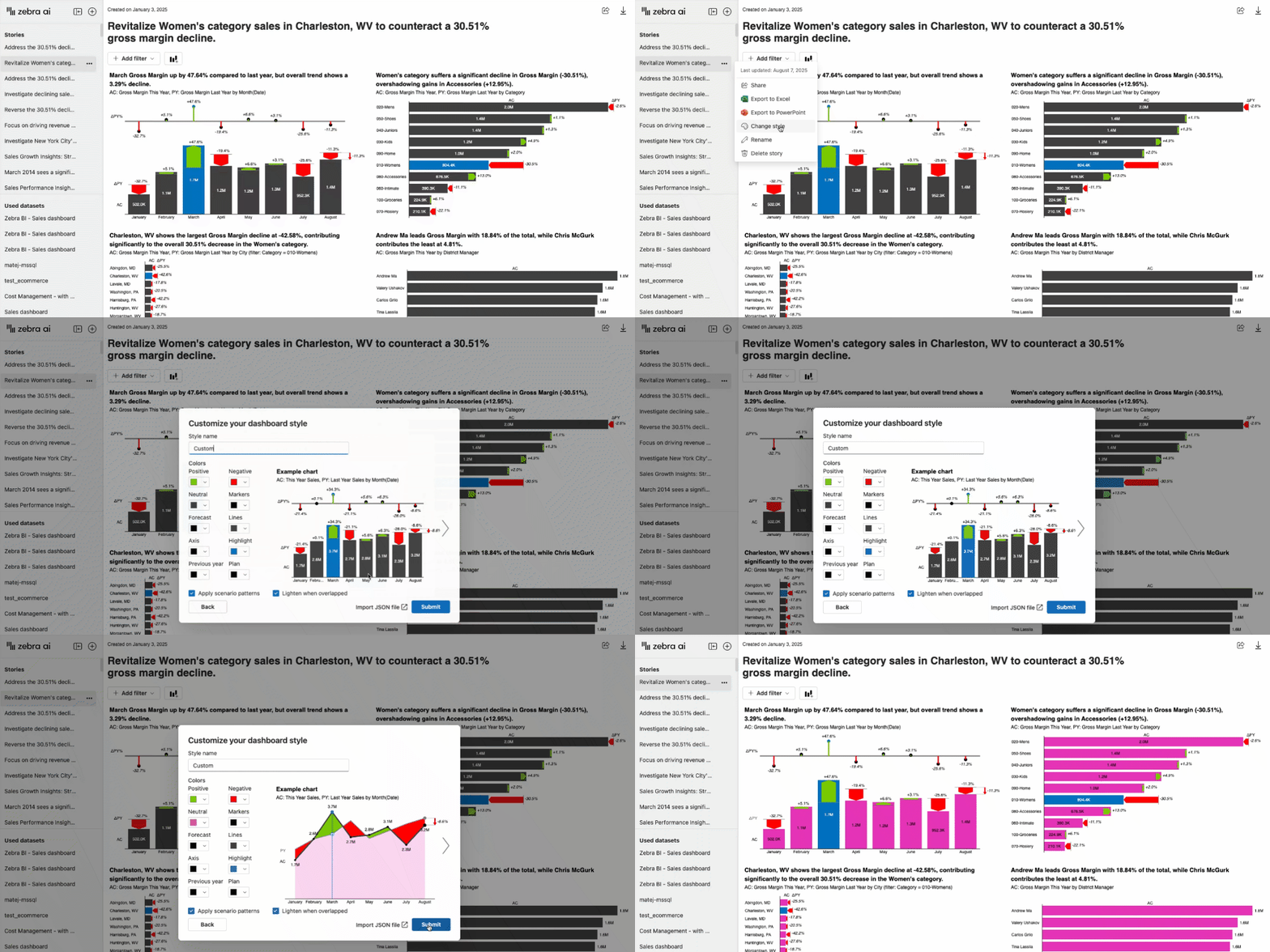
A dashboard style is the set of colors, fonts, and scenario settings applied across every chart in a story. Open any story, choose Change style, and pick a preset or build a custom one — with a live preview as you edit. Styles apply per story and save to your personal library for reuse.
Last reviewed: August 2026
IN THIS ARTICLE
01 — WHAT IT IS
What is a dashboard style?
A style is a saved set of colors, fonts, and scenario options that Zebra AI applies across all charts in a story. Zebra AI’s charts follow IBCS out of the box — so a style lets you tune the colors and emphasis of each scenario (Actual, Previous year, Plan, Forecast) to match your brand, while the underlying IBCS chart structure stays intact.
STYLES ARE PER STORY, NOT GLOBAL
Changing a style affects only the story you have open. Your other dashboards keep their own styles, so you can safely experiment without touching anything else.
02 — OPEN THE STYLE MENU
How do I open the style menu?
- Open the story you want to format.
- Click the three-dot menu next to the story title (or next to the story in the left-hand list).
- Choose Change style.
- Select a preset style, or click Custom to open the “Customize your dashboard style” dialog.
03 — WHAT YOU CAN CUSTOMIZE
What can I customize?
As you change any setting, the Example chart on the right re-renders instantly — so you can judge contrast, readability, and scenario emphasis before you apply anything.
| Color setting | Controls |
|---|---|
| Positive · Negative · Neutral | Colors for positive, negative, and neutral results |
| Previous year · Plan · Forecast | Colors for each IBCS scenario comparison |
| Markers · Lines · Axis | Colors for chart markers, lines, and axes |
| Highlight | The emphasis color for key bars and variances |
Beyond colors, the dialog also gives you:
- Apply scenario patterns — adds distinct fill patterns to scenarios so they’re distinguishable by pattern as well as color.
- Lighten when overlapped — lightens overlapping series so dense visuals stay readable.
- Style name — give the style a memorable name so you can reapply it later.
- Import JSON — load a saved theme file. Font sizes and colors defined in the theme are applied to the style.
04 — IMPORT A THEME
Can I import a Power BI or Zebra BI theme?
Yes. Use Import JSON to load an existing theme configuration. Zebra AI supports the Zebra BI for Power BI Custom Themes format and the Zebra BI for Office JSON theme format. If the JSON also defines font sizes and colors, those are applied to your custom style too.
05 — APPLY, SAVE & REUSE
How do I apply, save, and reuse a style?
Click Submit to save and apply the style in one step. This:
- Saves the style to your personal style library.
- Applies it to the current story only — all charts re-render with the new style.
- Makes new charts you add to this story inherit the style automatically.
To reuse or manage styles, open Change style again at any time. From there you can apply any saved style to the current story, or edit and delete your own styles.
06 — TIPS FOR A CLEAR STYLE
How do I keep a style readable and on-brand?
- Use distinctive colors — and patterns — for Previous year, Plan, and Forecast so scenarios read at a glance.
- Pick a strong Highlight color for the key bars and variances you want to draw the eye to.
- Enable Lighten when overlapped for dense or overlapping visuals.
07 — FREQUENTLY ASKED QUESTIONS
Dashboard style FAQ
Does changing a style affect my other dashboards?
No. Styles are applied per story. Changing a style re-renders only the story you have open — your other dashboards keep their own styles.
Can I import a Power BI theme?
Yes. Import JSON supports the Zebra BI for Power BI Custom Themes format and the Zebra BI for Office JSON theme format. Font sizes and colors defined in the theme are applied as well.
Where are my custom styles saved?
Each style you create is saved to your personal style library. Open Change style on any story to reapply, edit, or delete it.
Can I change fonts?
Colors and scenario options are set directly in the style dialog. Fonts and font sizes are applied by importing a JSON theme that defines them.
Do new charts pick up the style automatically?
Yes. Once a style is applied, any new chart you add to that story inherits it automatically.
How do I preview a style before applying it?
The Example chart in the style dialog updates live as you edit, so you can check contrast, readability, and scenario emphasis before you click Submit.
08 — RELATED ARTICLES
MAKE IT YOURS
Style your dashboard in a few clicks
Open a story, choose Change style, and tune the colors and scenarios to match your brand — with a live preview as you go.
Open Zebra AI