Connect & prepare your data
Zebra AI connects directly to SQL Server, PostgreSQL, MySQL, Snowflake, Databricks, and OneLake Warehouse — no file exports or ETL pipelines needed. Authenticate once, browse your schema, select columns, and build an IBCS-standard dashboard in minutes. Queries are read-only: Zebra AI never writes to your database.
IN THIS ARTICLE
01 — SUPPORTED CONNECTORS
Which SQL databases does Zebra AI support?
Zebra AI includes native connectors for the most common cloud and enterprise SQL databases. Choose your database type when creating a new story — no driver installation or third-party middleware required.
| Database | Authentication | What you need |
|---|---|---|
| SQL Server (MSSQL) | Microsoft Entra ID (Azure AD) or username/password | Server address, database name, credentials |
| PostgreSQL | Username/password | Host, port, database name, credentials |
| MySQL | Username/password | Host, port, database name, credentials |
| Databricks SQL | Personal Access Token | HTTP Path, catalog, schema, Personal Access Token |
| Snowflake | Username/password | Host, warehouse, schema, database name, credentials |
| OneLake Warehouse | Microsoft Entra ID (auto after consent) | Fabric workspace — Zebra AI Workload for Fabric required |
Power BI connects via XMLA and DAX, not a SQL connector. See how to connect to Power BI.
02 — CONNECTING
How do I connect my database to Zebra AI?
The flow is the same for every SQL connector. Have your credentials ready — a first connection takes under five minutes.
- In Zebra AI, click New story and select Connect a database.
- Choose your database type from the connector list.
- Enter your connection details and authenticate. For Microsoft Entra ID connectors a consent window appears — approve it to continue. For Databricks, paste your HTTP Path, catalog, schema, and Personal Access Token.
- Browse the schema tree: databases → schemas → tables → columns. Tick the columns you want — Zebra AI builds the SELECT query automatically.
- Or switch to Manual query mode to write or paste your own SELECT statement.
- Click Preview to confirm the results, then Build dashboard to generate your story.
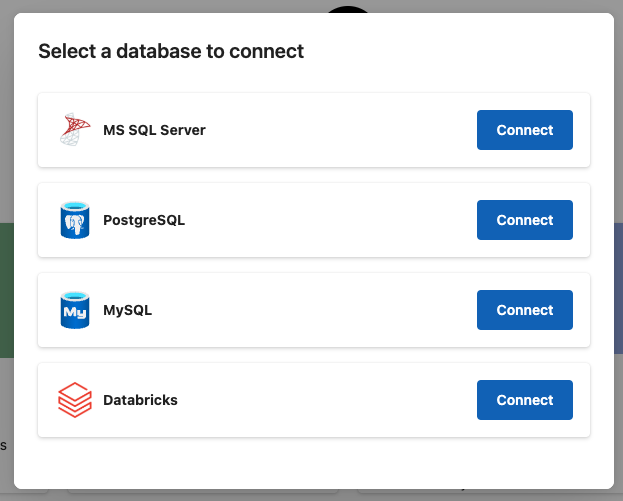
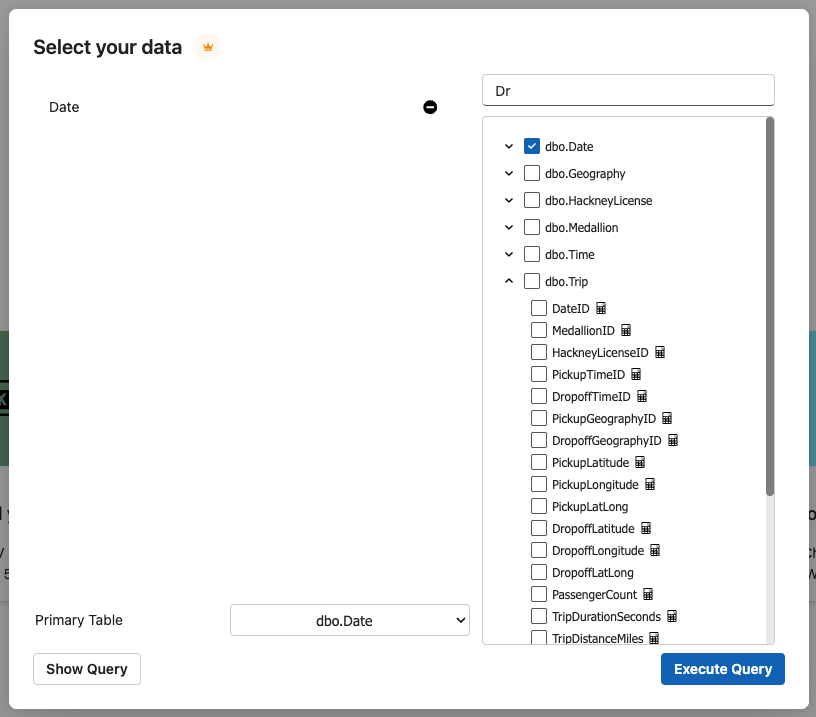
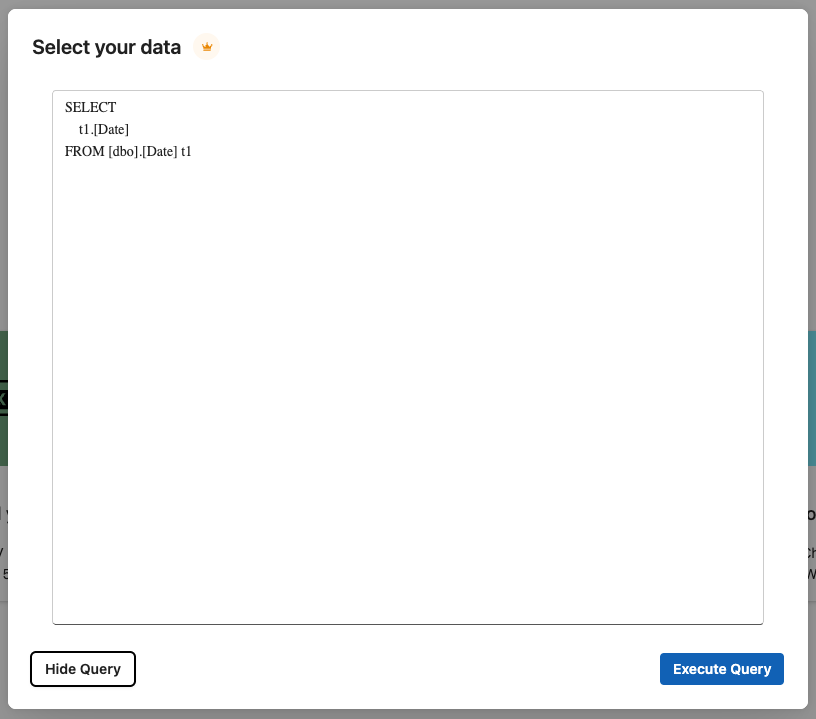
03 — WORKING WITH SQL DATA
What can I do with my SQL data in Zebra AI?
Once connected, your data flows directly into Zebra AI’s dashboard engine.
- Read-only queries only. Zebra AI runs SELECT statements exclusively. DDL and DML operations — CREATE, UPDATE, DELETE, stored procedures — are blocked at the connector level. Your source data is never modified.
- Large results handled gracefully. Results are capped at 10,000,000 cells (rows × columns). If your query exceeds this, Zebra AI stops at the cap rather than erroring out. You can cancel a long query at any time.
- Save as a dataset. After building your first story, the connection is saved automatically. Reopen it on your next visit and continue where you left off — no need to reconnect or re-authenticate.
From your connected data, Zebra AI automatically generates an IBCS-standard dashboard. You can then explore it via AI chat or customize the layout and style.
04 — SECURITY
How does Zebra AI protect my database credentials?
Zebra AI is designed as a read-only analytical layer — not a data store.
HOW CREDENTIAL HANDLING WORKS
- Zebra AI does not store your password or Personal Access Token in its database.
- For saved datasets, only non-sensitive metadata is retained (server address, database name, your SQL query) — never the credentials themselves.
- During your active session, an encrypted short-lived connection token may be held in memory to execute requests. It expires when the session ends.
- Any query results retrieved during your session are discarded automatically when it ends or times out.
For a full breakdown see the Zebra AI security policy.
05 — TIPS FOR BEST RESULTS
How do I get the best performance from a SQL connection?
- Filter and aggregate at source. Use WHERE clauses, GROUP BY, and aggregate functions to return only what you need. This keeps results well under the 10M-cell cap and speeds up dashboard generation.
- Check multi-table joins manually. When selecting columns through the visual interface, always review the generated SQL before previewing — joins across multiple tables can produce unexpected row counts.
- For Databricks, have your HTTP Path, Catalog, Schema, and a valid Personal Access Token ready before starting the connection flow.
- For Snowflake, have your host, warehouse, schema, database name, and credentials ready before starting the connection flow.
- For deeply messy data, consider exporting a CSV snapshot and running it through Zebra AI’s automatic data cleaning first, then return to a live SQL connection once the data model is stable.
06 — FREQUENTLY ASKED QUESTIONS
SQL connector FAQ
Does Zebra AI store my database password or access token?
No. Zebra AI does not persist sensitive credentials. Passwords and Personal Access Tokens are used only to establish a session connection. For saved datasets, only non-sensitive connection metadata is retained — not your credentials.
Can Zebra AI run UPDATE or DELETE queries on my database?
No. Zebra AI enforces SELECT-only access. DDL and DML operations — CREATE, UPDATE, DELETE, and stored procedures — are blocked at the connector level. Your source data cannot be modified through Zebra AI.
What happens if my query returns more than 10 million cells?
Results are capped at 10,000,000 cells (rows × columns). Retrieval stops at the cap without an error, but the result will be truncated. The fix: add WHERE filters or aggregate functions to reduce the result set before running.
Does Zebra AI support Snowflake?
Yes. Choose Snowflake from the connector list and enter your host, warehouse, schema, and database name, then authenticate with your username and password. Zebra AI connects to your Snowflake data warehouse the same way it connects to any other SQL source.
Can I change which columns are included after I have built a dashboard?
Yes. From within a story you can edit the selected columns and Zebra AI will regenerate a new version — the original story stays intact. See preparing and editing your data for the full workflow.
Is the OneLake Warehouse connector available on the free plan?
OneLake Warehouse (SQL) is available through the Zebra AI Workload for Fabric only — not the standard browser plan. See the Fabric setup guide for requirements.
07 — RELATED ARTICLES
READY TO CONNECT?
Turn your SQL data into an IBCS dashboard — in minutes
Connect directly to SQL Server, PostgreSQL, MySQL, Snowflake, or Databricks. No exports, no ETL, no waiting for BI tickets.
Open Zebra AI