Check your inbox for two incoming emails:
Here’s how to get started
Access the Subscription Management Portal
Go to our Chargebee portal to manage your subscription and add users. Use the email address you used to purchase the Zebra AI license to log in. (see image)
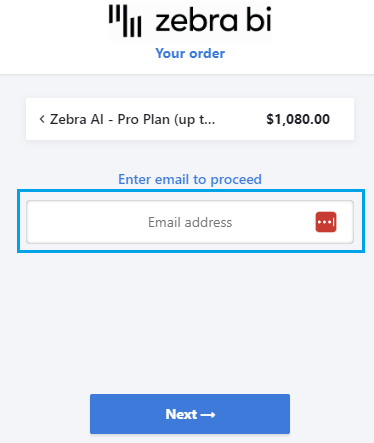 Access Chargebee Portal
Enter the User Emails
After logging in click on the Zebra AI subscribtion (image below).

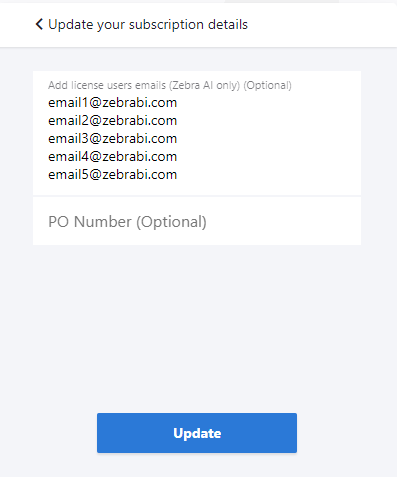
Click on the the right field where you will add email addresses of the users who will be accessing Zebra AI (image below).

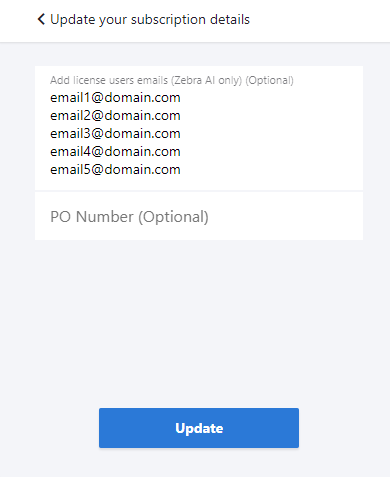
Add 5 emails but make sure each email is entered on a separate line, as shown in the example below:
Important: All email addresses must be Microsoft accounts. Without a Microsoft SSO account, users will not be able to sign in to Zebra AI.
Wait for the License to Sync
Once the email addresses are entered, Zebra AI will update the licenses within a minute. Users will then have full access to the platform. If the access isn’t immediate, simply refresh the page.
Key Points to Remember:
-
Each subscription allows you to add up to 5 users. Only the first 5 email addresses entered will be given paid access.
-
Make sure each user’s email is a Microsoft account to ensure proper login.
-
If you experience any issues or delays, refresh the page after a minute to activate the licenses.